What is the best way to balance mailbox databases in Exchange Server? There are a couple of ways to balance Exchange mailbox databases. In this article, you will learn how to use the PowerShell script that comes with Exchange Server to rebalance mailbox databases.
The organization got two Exchange Servers, and four mailbox databases with a DAG configured. The Exchange Servers are in an active/active state, with each holding active mailbox databases. Two mailbox databases are active on EX01-2016, and two mailbox databases on EX02-2016. We can activate the mailbox databases one by one on the preferred Exchange Server. To speed things up, it’s excellent to use the PowerShell script.
Get mailbox database activation preference
You can get the mailbox database activation preference in Exchange Admin Center and PowerShell. Let’s have a look at both.
Exchange Admin Center
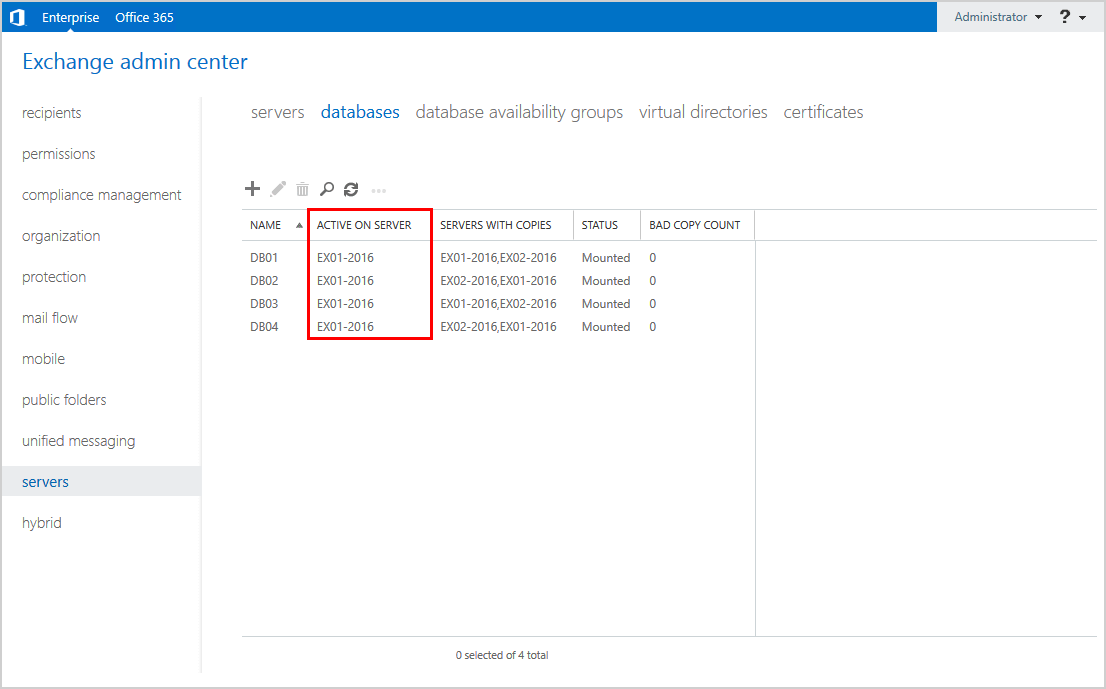
In Exchange Admin Center, go to servers > databases. Verify on which Exchange Server the mailbox databases are active.
Exchange Management Shell
Get the information with Exchange Management Shell. Use the Get-MailboxDatabase cmdlet and activation preference parameter -ActviationPrereference to list the mailbox databases.
There are four mailbox databases configured. Currently, all the mailbox databases are active on the Exchange Server EX01-2016.
How to rebalance mailbox databases
You can wait, and it will automatically move the active mailbox databases to the preferred activation preference. That’s the default DAG activation preference behavior since Exchange Server 2016 CU2. Another way is to activate the mailbox database manually.
There are three options to manually activate the active mailbox database to the preferred activation preference:
- Activate mailbox databases in Exchange Admin Center
- Activate mailbox databases with Exchange Management Shell (PowerShell)
- Balance mailbox databases with PowerShell script (Microsoft)
The recommended way is to use option three, the PowerShell script supplied by Microsoft.
Get Database Availability Group name
Before using the PowerShell script to rebalance the mailbox databases, you need to know the Database Availability Group (DAG) name.
Use the Get-DatabaseAvailabilityGroup cmdlet and -Status parameter to list the DAGs.
The name of the DAG is DAG01-2016.
Balance Exchange mailbox database with PowerShell script
The organization’s configuration is active/active mode, and both member servers (Exchange Servers) hold active mailbox databases:
- Exchange Server EX01-2016: Mailbox databases with even numbers
- Exchange Server EX02-2016: Mailbox databases with uneven numbers
Run Exchange Management Shell as administrator. Run cd $exscripts to change the path to the Exchange Server scripts folder.
Return your active database copies to their most preferred DAG member. Use the PowerShell script RedistributeActiveDatabases.ps1 supplied by Microsoft. Add the DAG name and -BalanceDbsByActivationPreference switch.
The script will run, check every mailbox database, and ask you to confirm. Press A to confirm and proceed further.
You can get a warning after you use the above command:
WARNING: The property ‘Mounted’ cannot be found on this object. Verify that the property exists.
The solution is to run the command as in the previous step, but this time add the -SkipMoveSuppressionChecks switch. It will go through all the mailbox databases and ask to confirm if you want to move. Click A to confirm.
The PowerShell script did move two mailbox databases (DB02 and DB04) successfully. The script did not attempt to move the other two mailbox databases (DB01 and DB03) because they are already on the preferred activation preference.
Verify mailbox database activation preference
Run the Get-MailboxDatabase cmdlet, just like the first step, to check which Exchange Server the active mailbox database is located.
The mailbox databases:
- DB01 and DB03 are active on Exchange Server EX01-2016
- DB02 and DB04 are active on Exchange Server EX02-2016
You can always verify the mailbox databases in Exchange Admin Center by checking the activate on server column.
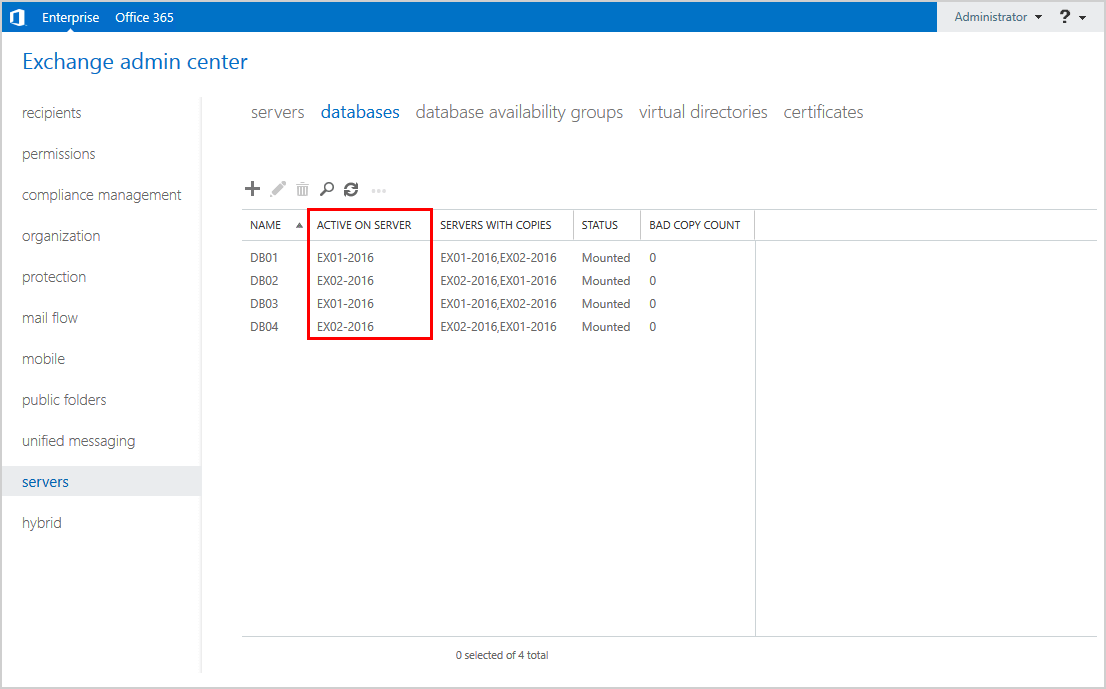
All the mailbox databases are active on the preferred activation preference. The RedistributeActiveDatabases.ps1 PowerShell script worked great!
Keep reading: Activate database copy failed content index disabled »
Conclusion
You learned how to balance mailbox databases in Exchange DAG. Use the PowerShell script by Microsoft to rebalance mailbox databases on the Exchange Servers. Check the activation preference in Exchange Management Shell after completion.